How do I create a streaming video event?
Features
- One video hosted per Event
- Automatic Player Page generation after video configured
- Individual access code (password) generation for attendees per ticket
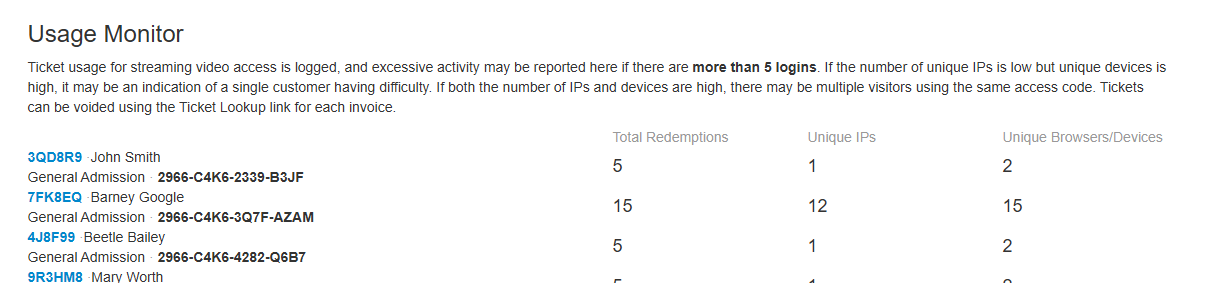
- Monitor access code usage
- Optionally configure short term access codes
Do I have to configure my event differently?
Once we receive your video content and it has been attached to your event, several things happen automatically:
- A Player Page URL is generated and the video can be played by attendees once the event has begun.
- A "Video" section will appear in your tools under Event > Details, providing you with a link to the Player Page so you can preview it. Note that if you preview your video while logged into our administrative tools, you will not be prompted with a login. If, for some reason, you need to troubleshoot a password for an attendee, you will need to log out of our administrative tools to do so.
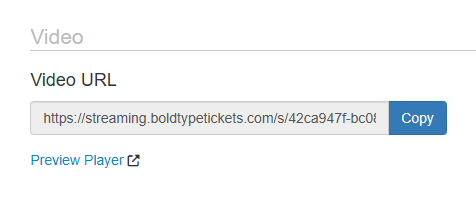
- After a purchase, the attendee's Order Status page will automatically display a link to the Player Page for your video, and a unique access code will be displayed next to it.
- The video will only be playable by attendees during the time period when your Event starts and ends.
- You may want to schedule a Message to all attendees for the day of your Event to remind them that the video will become available soon. Remember to include Order Details so they have an easy link to their Player Page and their access code.
What if my video file isn't ready but I want to start selling tickets?
- Create and sell tickets as you normally would, but create Confirmation Text for receipts indicating that the attendee will receive a Message from our system at a later date.
- When you're ready, you can send a Message later from our system that includes Order Details which will provide a link to the attendee's Order Status page. The Player Page link and the attendee's access code will automatically appear there once your video is uploaded to our system.
What if I want to limit access to the video after an attendee first starts playing it?
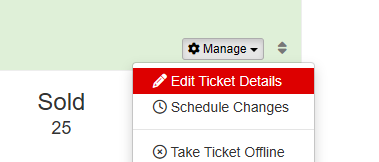
- After your tickets are created, you can edit the access window each ticket provides using the Edit Ticket Details editor.
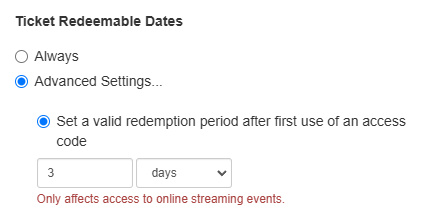
 Here you can configure how long a ticket's access code is valid after the first time it is used, by days or hours.
 After the attendee first uses the access code for that ticket to begin watching, a countdown will begin, and that access code will become invalid after that time period.
- The amount of time the attendee has left to watch the video is displayed on the Player Page.
 Here you can configure how long a ticket's access code is valid after the first time it is used, by days or hours.
 After the attendee first uses the access code for that ticket to begin watching, a countdown will begin, and that access code will become invalid after that time period.
How do I upload my video to you?
We would prefer to have a direct share link to Dropbox, another file sharing service, or some other direct link which does not require authentication, as our streaming servers can transfer it directly server-to-server, avoiding time spent manually downloading and uploading large media files.
The file should not be “zipped” or archived in any way. Our servers need to process the video file itself (.MP4, .MOV, etc.).
Dropbox from a local folder:
- Right-click or cmd-click a video file
- Select “Copy Dropbox link”
- Send it to our Support team
Dropbox on the web:
- Click “Share” on a file and then “Share With Dropbox”
- Instead of sharing an email, click “Create Link” or “Copy Link” at the bottom and copy that
- Send it to our Support team
If you are using Dropbox, the public share link you send us should have a format similar to the following example:
https://www.dropbox.com/scl/fi/############/MYVIDEO.mp4?rlkey=#######&st=#####&dl=0
Note that sharing a whole Dropbox folder to our Support team may seem convenient and does allow us manual access, but it does not allow us to create share links we can use for easy server transfer. Direct links to each file are the most efficient for everyone.
If you are transferring a file to us through another file sharing platform, contact us if you have questions.
Are there guidelines for the format of the video file?
For ideal uploading, processing, and streaming of your media, please encode your final file as close to the following as possible.
- MP4, MKV, MOV, AVI, FLV, MPG, QuickTime
- 1080p – 8 Mbps bitrate
- AAC audio codec
- H264 video codec
- 30 or below frames per second
How do I manage the event after it has started?
If your video content has already been uploaded to our servers, a link to the Player Page and each ticket's access code will be available to the attendee immediately after purchase through their Order Status page. The video will only be playable during the length of the Event itself.
- As outlined earlier, if you want to start ticket sales before your video is ready, you may need to schedule Confirmation Text and Messages to communicate with your attendees how and when they will receive their Player Page link and access code closer to the Event.
- If you've placed time limits on the access codes and you need to extend an attendee's access, you can Reissue their ticket in our Order Lookup tool. The access timer for that ticket will be reset until they use the access code for the first time, as if it were a new purchase.
- If you would like to be aware of excessive usage and discourage password sharing, you can check the Admissions Data page for your Event. If a ticket's access code has been used repeatedly on different devices and browsers from multiple IP addresses, it will be listed there. Our system will not take any action if an access code is used multiple times, but you can manually Void a ticket in Ticket Lookup based on the data we provide on the Admissions Data page, if you feel it is excessive.