Can I add social or calendar links to my event?
While you can add any links you like into your Event Description with the editor, your attendees should have options once they've made a purchase. There are some distinct sharing and saving links our system can handle that will be accessible from your customer's receipt.
Save The Date
In order to make it easier for your attendees to save the event for future reference, we have the following options:
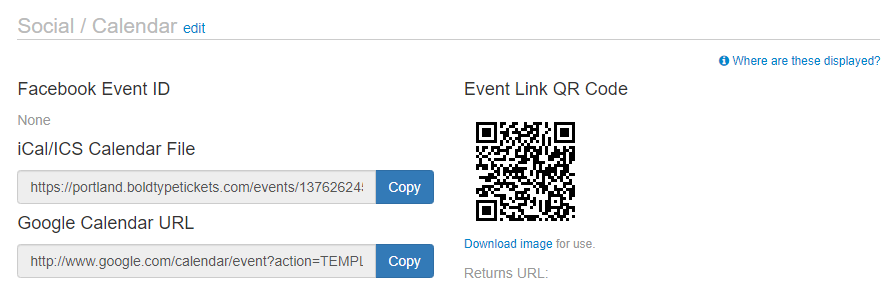
- Google Calendar: Opens Google Calendar to add the event title, date, time, and location as an entry. This link is automatically generated by our system and is accessible from the customer's receipt.
- iCal/ICS Files: Downloads an ICS file to the user's device for use in a variety of scheduling applications. This link is automatically generated by our system and is accessible from the customer's receipt.
- Facebook Event: A Facebook Event ID must be supplied so we can generate a link to it, which can be entered in Event > Details under our Social / Calendar section. This makes it easy for customers to notify Facebook's platform that they are "Going" to the event, and may increase visibility of the event.
In addition to social sharing, in our Event > Details > Social / Calendar section we also provide a downloadable QR Code image that can be used in print or digital media. The QR Code returns the public URL of the event page when scanned.
Share This Event
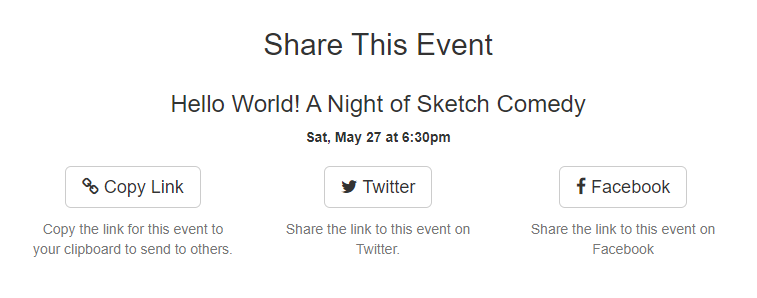
To encourage your attendees to share the event, we also automatically provide links in receipts to share the event URL on:
- Facebook: Opens a Facebook timeline post popup window with the Event URL autofilled.
- Twitter: Opens a Tweet popup window with the Event URL autofilled.
- Copy This Link: A one-click link to copy the Event URL to the customer's clipboard for pasting elsewhere.